Mastering TenseAI Workflow Templates: The Complete Step-by-Step Guide
Deploy battle-tested multi-tool AI automations across Gmail, Google Sheets, Drive, Calendar, WhatsApp, and DeepSearch in seconds without complex setup.
TenseAi Automation Team
Workflow & Platform Architecture
Mar 26, 2026
4 min read
Modern productivity often breaks down not because teams lack tools, but because those tools live in isolated silos. A single routine operation—such as qualifying inbound leads, generating presentation decks, sending personalized outreach, or archiving invoices—often forces knowledge workers to jump between 5 different browser tabs, copy-pasting data and manually triggering repetitive actions.
To eliminate this friction, TenseAI Workflow Templates provide pre-built, production-grade automation blueprints. Instead of designing complex Directed Acyclic Graphs (DAGs) or wiring API parameters from scratch, you can now browse a rich library of battle-tested templates and deploy sophisticated multi-tool automations in one click.
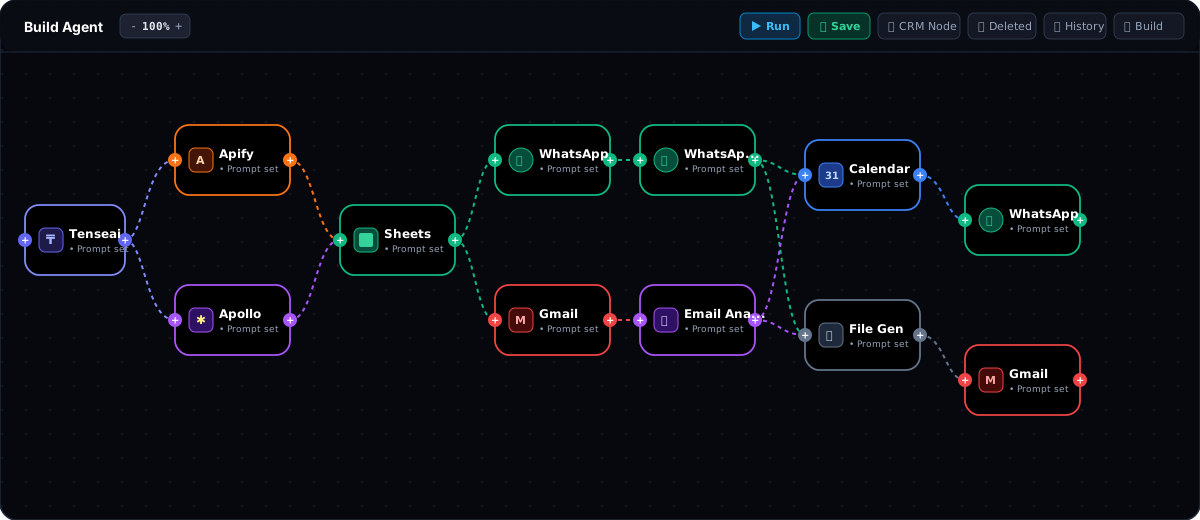
TenseAI Visual Agent Canvas: Multi-branch pipeline connecting Apify, Apollo, Sheets, WhatsApp, Gmail, Calendar, and File Gen.
⚡ What Are TenseAI Workflow Templates?
A TenseAI Workflow Template is an end-to-end automation graph pre-configured with the exact tools, nodes, connection routing, and prompt templates needed for a specific business outcome. Every template combines:
Pre-Configured Node Graphs: Intelligently structured execution paths linking triggers, data processors, AI generators, and destination tools.
Universal Output Envelopes: Standardized data contracts ensuring seamless handoffs between services (e.g., passing spreadsheet rows into personalized Gmail drafts).
Customizable Prompts & Parameters: Pre-tuned AI system prompts that you can easily tweak to match your brand voice, recipient criteria, or scheduling rules.
Built-in Safety & Execution Monitoring: Granular error handling, rate-limit protection, and real-time step-by-step telemetry on every run.
🔍 Exploring the Template Gallery
When you open the Templates section in your TenseAI workspace, you are greeted by an intuitive, categorised gallery designed for quick discovery:
Category Filtering: Switch seamlessly between All, Email, Marketing, Productivity Assistant, and Support to find workflows tailored to your department.
Smart Search: Type any keyword like 'invoice', 'calendar', 'scrape', or 'drive' to instantly filter matching automations.
Community Metrics & Badges: Every card showcases verified usage metrics (e.g., Used by 5.2k) and tool integration icons so you immediately know which services are utilized.
🚀 Spotlight: Popular Templates & Real-World Use Cases
Here is a walkthrough of some of the most popular workflow templates available in TenseAI and how you can put them to work immediately:
1. Generate Slide and Email (Marketing)
The Problem: Creating pitch decks or executive summaries and drafting distribution emails takes hours of manual formatting.
The Solution: This template takes a single topic prompt, generates a structured presentation deck using AI narrative optimization, and automatically dispatches the generated slides to your designated stakeholder email list.
The Problem: Coordinating interviews between hiring managers and applicants requires constant back-and-forth email tagging and calendar checking.
The Solution: This workflow reads applicant data from your Google Sheet, identifies interview time slots, generates Google Calendar events with auto-generated Google Meet video links, and sends confirmation emails to candidates with all meeting details attached.
Connected Tools: Google Sheets ➔ Google Calendar ➔ Google Meet ➔ Gmail.
Best For: Recruiting teams, HR coordinators, and hiring managers.
3. AI Agents Research & Email Dispatch (Email & Research)
The Problem: Staying updated on fast-evolving industry trends requires extensive daily web research and manual note compilation.
The Solution: Leveraging TenseAI's DeepSearch engine, this template performs multi-source web investigations on your requested topic, extracts key findings with citations, and delivers a beautifully formatted intelligence digest directly to your inbox.
Best For: Founders, executive assistants, product managers, and market analysts.
4. Save Email Attachment to Google Drive (Productivity Assistant)
The Problem: Important invoices, receipts, and vendor contracts get buried in crowded email inboxes and never make it to central cloud storage.
The Solution: This automation scans incoming emails for document attachments, parses file metadata, and securely uploads files to your designated Google Drive backup folders with clean timestamped filenames.
Connected Tools: Gmail Ingestion ➔ Google Drive Storage Sync.
Best For: Finance teams, legal compliance, and tax record archiving.
The Problem: Cold outreach requires personalized copy at scale, tracking replies, and coordinating follow-up cadence.
The Solution: Connect your Google Sheet lead database; TenseAI personalizes each outreach email, schedules intelligent follow-up reminders, and automates calendar booking as soon as prospects reply.
Connected Tools: Google Sheets Leads ➔ AI Copy Personalizer ➔ Gmail Outreach ➔ Calendar Scheduler.
Best For: Sales development representatives (SDRs), agency founders, and growth marketers.
6. Generate Invoices from Google Sheet (Productivity Assistant)
The Problem: Creating monthly client invoices manually from spreadsheet billing data is error-prone and tedious.
The Solution: Reads billing line items, client addresses, and payment totals directly from your Google Sheet, generates branded PDF invoices, and emails them to clients or archives them in Google Drive.
Connected Tools: Google Sheets ➔ Invoice Automation PDF Engine ➔ Gmail / Drive.
Best For: Freelancers, consultants, agencies, and billing departments.
🛠️ Step-by-Step: How to Use a Template
Step 1: Connect Your Integrations: Go to Settings ➔ Integrations in TenseAI and authorize the tools used by your desired template (e.g., Gmail, Google Sheets, Google Calendar, Google Drive). OAuth tokens are encrypted at rest with industry-grade security.
Step 2: Select 'Use Template →': Browse the Templates gallery, find the workflow matching your goal, and click Use Template →. This instantly deep-clones the template and loads the interactive node canvas into your active workspace.
Step 3: Customize Node Inputs: Click on any node in the graph to configure your spreadsheet URL, email recipient, subject line, or prompt instructions. You can customize variables like {{name}} or {{company}} to personalize data mapping.
Step 4: Execute or Schedule: Click Execute Plan to run the workflow immediately, or configure an automated recurring trigger (e.g., daily at 9:00 AM) to run in the background.
Step 5: Inspect Real-Time Output: Watch live execution as each node processes data with topological DAG sorting. Review output envelopes, download generated PDFs or slide files, and monitor execution logs.
💡 Pro-Tips for Advanced Customization
Add Intermediate Nodes: Templates are fully extensible. You can drag and drop additional nodes—like a DeepSearch research node or a WhatsApp alert node—into any pre-built template.
Dry-Run with Sample Data: When running bulk email or spreadsheet workflows, test with a 1-row sample sheet first to verify copy and layout before launching full campaigns.
Save as Custom Workflow: After fine-tuning a template for your specific business requirements, save it as a custom workflow to reuse with your team at any time.
🏁 Start Automating Today
Workflow templates bridge the gap between AI capability and real-world execution. You do not need to be a developer or write complex scripts to automate your everyday business workflows. Head over to the Templates tab in TenseAI, select your favorite workflow, and experience the power of effortless multi-tool AI automation.