How to Connect Google Sheets in TenseAi and Automate Spreadsheet Creation
Create, Manage, and Organize Google Sheets with AI — No Manual Work Required


Managing spreadsheets manually is often time-consuming, repetitive and prone to errors. With TenseAi's Google Sheets Integration, you can create and manage spreadsheets simply by describing what you need in plain English.
Whether you're tracking sales, managing projects, maintaining employee records, or organizing daily tasks, TenseAi transforms simple instructions into fully structured Google Sheets in seconds.
Why Connect Google Sheets with TenseAi?
Imagine creating a complete spreadsheet without manually adding columns, formatting data or setting up the sheet yourself. With TenseAi, you can generate spreadsheets instantly using natural language, save hours of manual data entry, reduce human errors and inconsistencies, improve team collaboration with shareable Google Sheets, and automate repetitive spreadsheet workflows. Simply describe what you need and TenseAi handles the rest.
Step 1: Connect Google Sheets to TenseAi
Getting started takes just a few clicks. Navigate to the Tools section inside TenseAi and locate the Google Sheets integration. Click Connect and sign in with your Google account.
Using secure OAuth 2.0 authentication, TenseAi securely connects to your Google account and creates spreadsheets on your behalf.
Your data remains protected while TenseAi handles the heavy lifting.
Step 2: Enable the Google Sheets Tool
After connecting your account, turn on the Google Sheets Toggle from the Tools section.
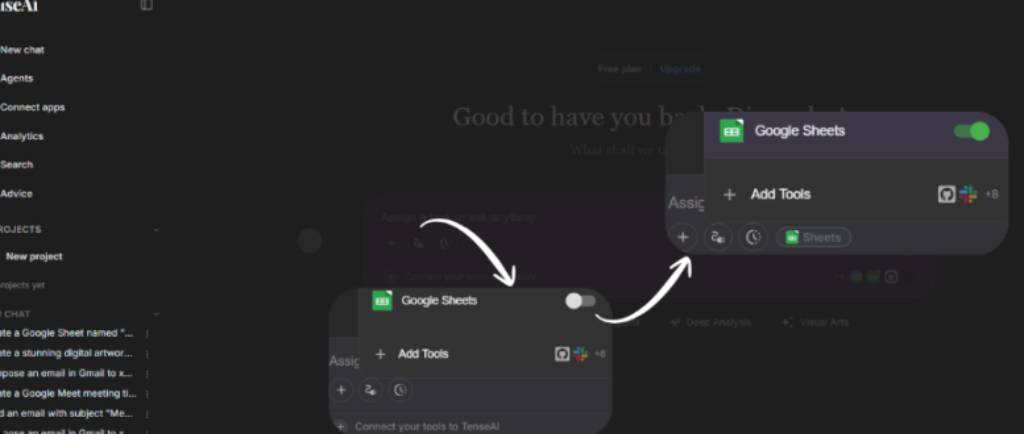
Once enabled, TenseAi can instantly create and manage spreadsheets based on your instructions.
Step 3: Describe What You Need
No formulas. No templates. No manual setup. Just type a prompt describing the spreadsheet you want to create.
“Create a Google Sheet for tracking my daily tasks and provide the shareable link.”
“Create a monthly sales report with columns for Date, Product Name, Revenue, and Sales Representative.”
“Generate a student attendance tracker for a school.”
TenseAi interprets your request and automatically generates a structured spreadsheet.
Step 4: AI Processes Your Request
Once you submit your prompt, TenseAi analyzes the requirements and intelligently creates a spreadsheet structure.
This ensures each spreadsheet is well-structured, organized, and ready to use.
Step 5: Review Before Execution
Before creating the spreadsheet, TenseAi presents a preview of the execution plan. Review the sheet name, purpose, column structure, and data organization. When everything looks correct, click Confirm & Execute.
This review step gives you complete control while maintaining automation accuracy.
Step 6: Spreadsheet Created Successfully
Within seconds, TenseAi creates your Google Sheet and provides a shareable link for instant access. You'll receive a newly created Google Sheet with organized columns and structure, a shareable Google Sheets URL, and a ready-to-use spreadsheet — no manual setup, no formatting headaches.
Example Prompt
“Create a Google Sheet for tracking daily tasks with columns for Task Name, Priority, Due Date, Status, and Notes. Also provide the shareable sheet link.”
Within moments, TenseAi creates a fully structured task tracker and provides a shareable Google Sheets link.
What You Can Automate with Google Sheets
Businesses and professionals use TenseAi to automate spreadsheet workflows across many domains.
Instead of spending time building spreadsheets manually, focus on the work that matters while TenseAi handles the setup.
Key Benefits
Start Automating with TenseAI
Build production-grade, multi-tool workflows with Kahn's DAG compilation and Universal Output Envelopes.